If you’ve ever stared at a blank prompt box wondering what to type next, you’re not alone. AI image models are powerful, but getting consistently good results still depends on the words you use, the style language you choose, your parameters, and how you handle negative prompts.
That’s why Art Prompt HQ includes a small toolkit of free AI prompt tools designed to work together. Use them to:
- Discover better style phrases.
- Turn rough ideas into structured prompts.
- Refine wording you already use.
- Set the right parameters for your model.
- Strip out common AI artifacts.
Below are the five free tools you’ll find on the Tools page, plus a simple workflow that shows how they fit together.
The 5 tools in your AI prompt toolkit
You’ll find all of these on the Tools page at Art Prompt HQ.
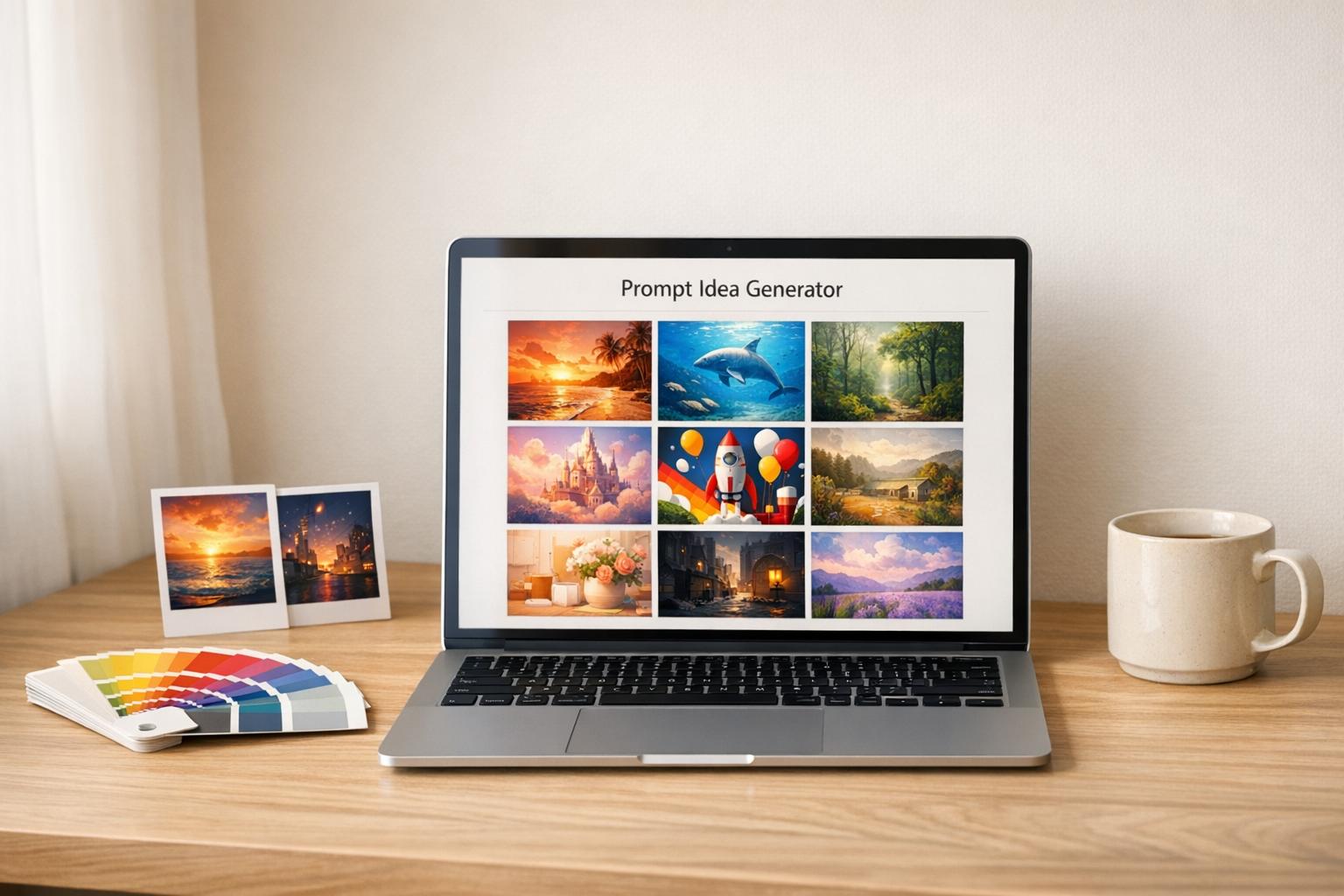
- AI Art Style Finder
Helps you discover visual styles and copy ready‑to‑use style phrases for your prompts. Use it when you know the vibe you want (cinematic, 3D, anime, abstract, editorial) but not the exact words to describe it. - Midjourney Prompt Tool
Turns a simple idea into structured Midjourney prompts. Paste in a concept like “retrofuturistic city skyline at night” and get several model‑friendly prompt options you can test immediately. - AI Image Prompt Refiner
Polishes prompts you already use. Paste a rough prompt and get clearer, more descriptive versions that keep your original idea but add better structure, detail, and phrasing. - AI Image Prompt Optimizer
Focuses on settings, not text. Pick your model and use sliders for aspect ratio, stylization, quality, and chaos to generate a parameter string, for example:--ar 16:9 --stylize 200 --quality 1 --chaos 10You can attach to any prompt.
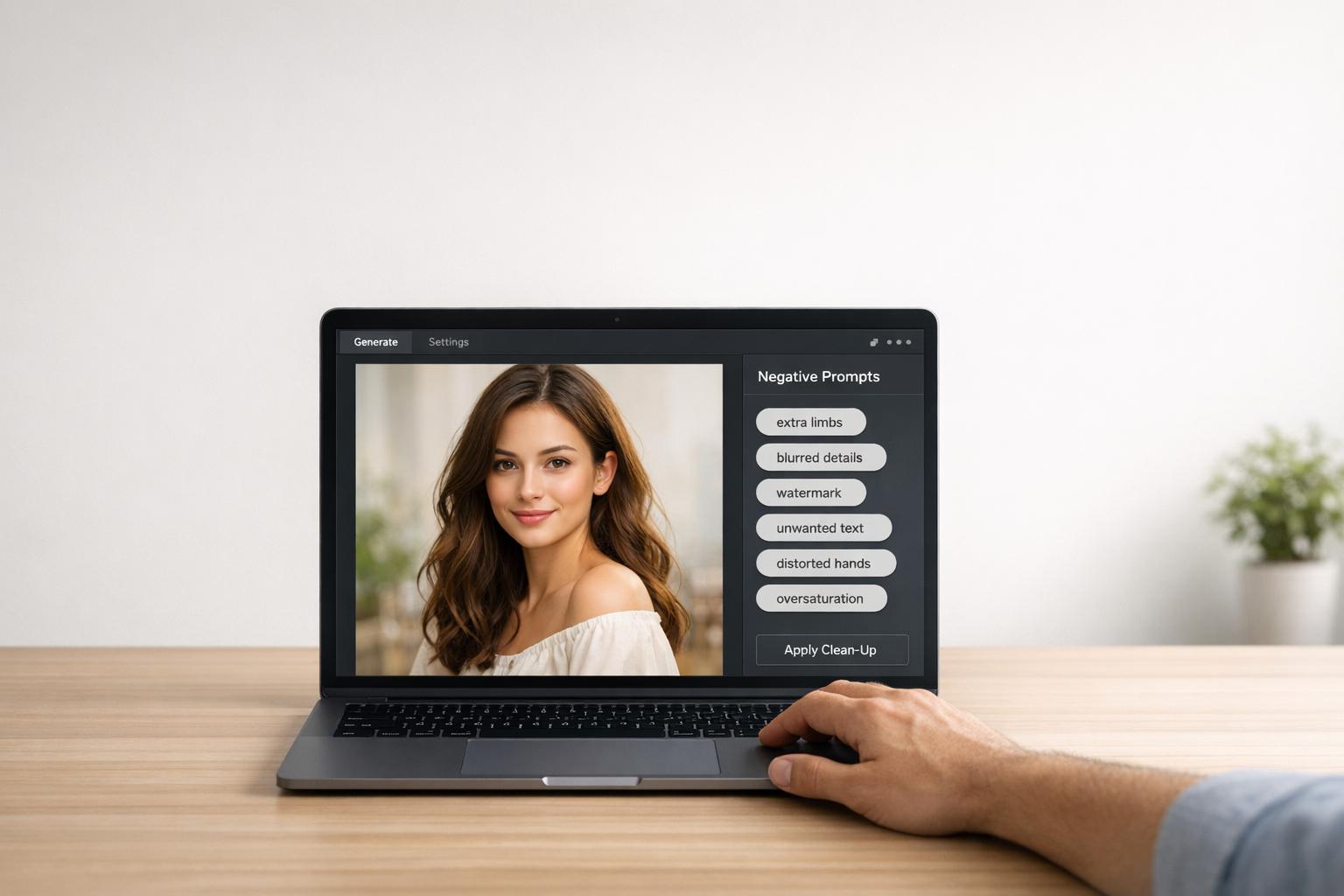
- AI Negative Prompt Generator
Builds a negative prompt string from checkboxes and custom “no X” items. Quickly remove common issues like text, logos, watermarks, extra fingers, distorted faces, blur, frames, and other artifacts so your images look cleaner.
A simple workflow that combines all 5
You don’t have to use every tool on every image, but here’s a quick recipe that works well for most projects:
- Pick your style with AI Art Style Finder and copy a style phrase that matches your goal.
- Turn your idea into prompts with the Midjourney Prompt Tool and choose the option you like best.
- Refine the wording in AI Image Prompt Refiner if your prompt still feels vague or under‑detailed.
- Set the right parameters with AI Image Prompt Optimizer so aspect ratio, stylization, and quality match your output (for example, square social posts vs YouTube thumbnails vs vertical Reels).
- Remove common artifacts using AI Negative Prompt Generator, then paste the final prompt + parameters into Midjourney, Stable Diffusion, or DALLE and generate.
If you want to go further, you can:
- Save your best prompts + settings as reusable recipes.
- Pair these tools with curated prompt packs from the main directory for specific use cases (like e‑commerce images, portfolios, or viral shorts)
Related Blog Posts
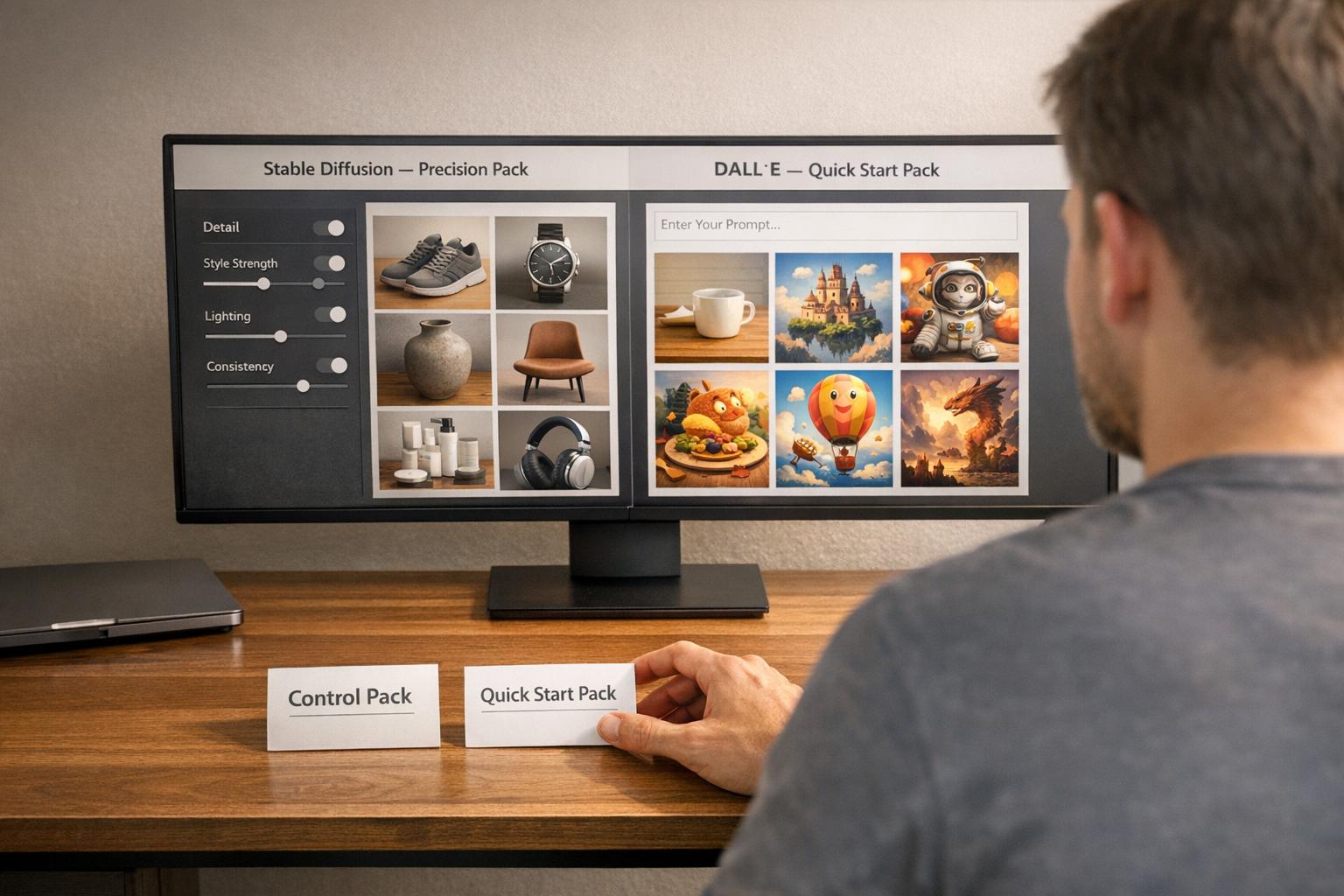
Stable Diffusion vs DALL·E for AI Art: Which Prompt Packs Work Best for You?