Negative prompts are a powerful way to improve AI-generated art by telling the model what to avoid. Whether you're dealing with extra fingers, distorted faces, or unwanted text, negative prompts help refine your results. This guide explains how they work, how different AI models handle them, and how to build reusable lists for specific styles like AI portrait prompts or photorealism. With the right approach, you can create cleaner, more polished images faster and with fewer errors. Let's dive into how to make the most of this technique.
What Negative Prompts Are and How They Work
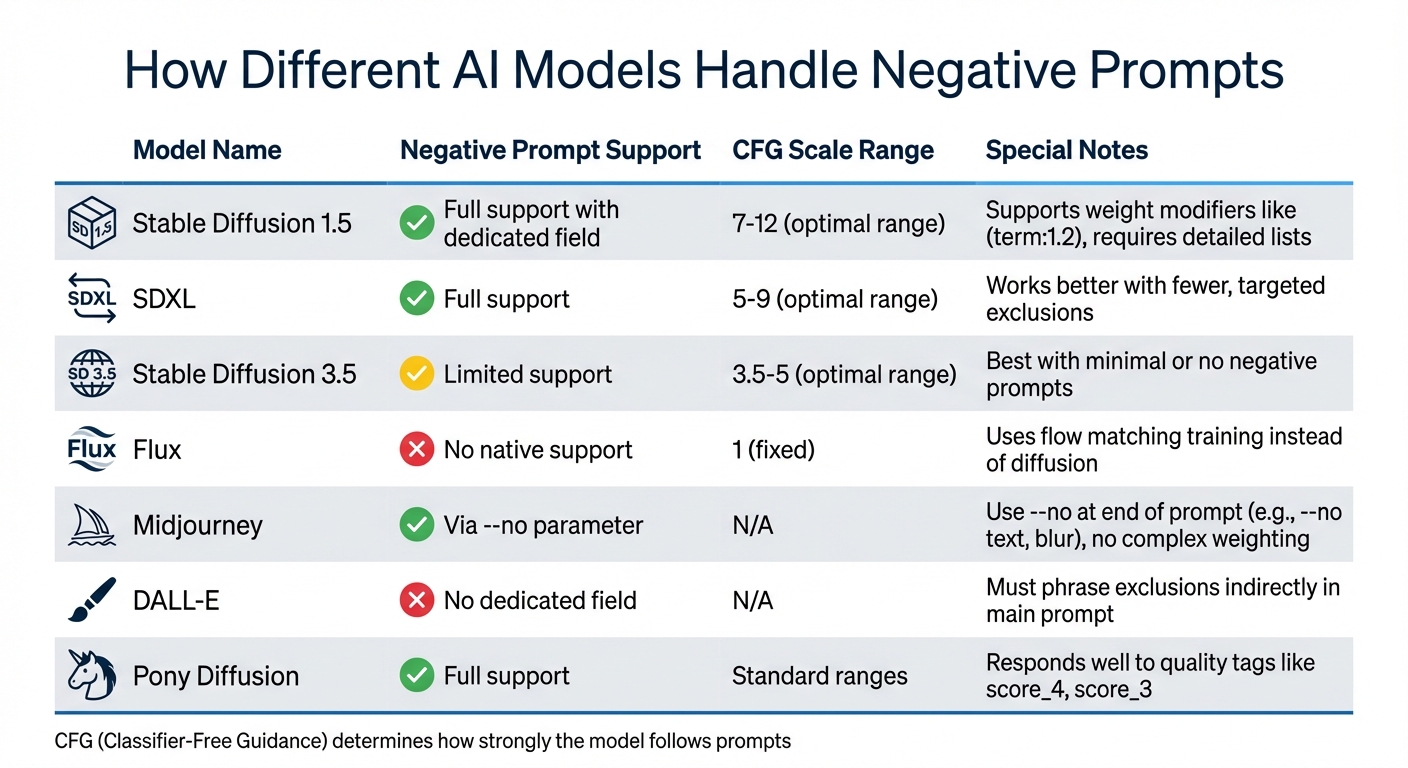
AI Model Negative Prompt Support and CFG Scale Settings Comparison
What Are Negative Prompts?
Negative prompts are instructions that guide AI to avoid certain features during image generation [3, 5]. While a positive prompt outlines what you want - like the subject, style, or composition - a negative prompt works as a filter to suppress elements you don’t want [3, 4]. Both prompts use the same text encoder, but the AI reduces the weight of features listed in the negative prompt.
Different platforms handle negative prompts in distinct ways. Stable Diffusion has a dedicated negative prompt field where you can add weight modifiers like blurry:1.2. Midjourney uses the --no parameter (e.g., --no text, blur), and DALL-E requires you to phrase exclusions indirectly within the positive prompt [3].
Why Use Negative Prompts
Negative prompts are essential for quality control, helping to avoid common AI-generated issues like extra limbs, distorted faces, unwanted text, or blurry results [3, 6]. By steering the AI away from these pitfalls, you can achieve cleaner, more polished outcomes.
They’re also useful for maintaining stylistic consistency. For instance, you can prevent a cartoonish vibe from sneaking into a photorealistic image. This is particularly handy when working with portrait packs or photography prompts, where accuracy and precision matter. Building reusable negative prompt lists tailored to your needs can make this process even more efficient.
How AI Models Process Negative Prompts
Most diffusion models rely on Classifier-Free Guidance (CFG) to handle negative prompts. During image creation, the AI generates two internal predictions - one based on the positive prompt and another on the negative prompt. The final image is then adjusted to move away from the negative prediction and closer to the positive one. As explained by AI Photo Generator:
"The model generates a second prediction based on your negative prompt... It compares the two and pushes the final image away from the negative prediction and toward the positive one" [1].
The CFG scale determines how strongly the model avoids the negative prompt. For example, Stable Diffusion 1.5 works best with values between 7 and 12, SDXL performs well at 5 to 9, and Stable Diffusion 3.5 is optimized with a range of 3.5 to 5 [1]. Models like Flux, which use flow matching training instead of diffusion, operate with a CFG value of 1 and don’t natively support negative prompts [1].
Negative prompts act as flexible guidelines, reducing unwanted features without fully eliminating them [2, 3]. A good starting point is using general terms like "worst quality" or "blurry" and then adding more specific exclusions as needed [1, 2]. Understanding how models interpret these prompts allows you to address specific issues in AI-generated art with precision.
sbb-itb-997826f
Common AI Art Problems Negative Prompts Can Fix
AI-generated images often come with imperfections that can undermine even the most carefully crafted positive prompts. Negative prompts serve as a corrective tool, guiding the model away from specific issues. As the CubistAI Team puts it, negative prompts essentially tell the AI: "Whatever you do, steer away from these concepts" [4]. Knowing which problems can be addressed with negative prompts allows you to refine your workflow and achieve better results. Here's how they can tackle some of the most common challenges.
Fixing Blur, Noise, and Image Artifacts
Negative prompts can significantly enhance the technical quality of images by reducing blur, noise, and other artifacts. Issues like low resolution, grainy textures, and pixelation often stem from training models on datasets of mixed quality. Including terms such as lowres, blurry, jpeg artifacts, compression artifacts, grainy, noise, out of focus, pixelated in your negative prompt can help minimize these flaws.
Even high-resolution outputs can sometimes appear over-processed, with overly sharp textures or unnatural details. To address this, you can add more specific terms like fabric noise, harsh micro-details, unrealistic skin texture to your negative prompt. Start with broad quality-related terms and fine-tune with targeted exclusions based on the specific artifacts you observe in your renders.
Correcting Anatomy Problems
Anatomical distortions, like the infamous "AI hands" with extra or fused fingers, remain a tough hurdle in AI art. Negative prompts are a key tool for addressing these issues. Use terms such as bad anatomy, extra fingers, fused fingers, missing limbs, mutated hands, poorly drawn face, long neck, malformed, extra arms to tackle body proportion problems.
For particularly stubborn distortions, weight modifiers can strengthen the effect. For example, (bad hands:1.5) emphasizes the avoidance of hand-related errors. Face-related issues, such as asymmetrical features, crossed eyes, or distorted proportions, can be managed with exclusions like deformed iris, crossed eyes, asymmetrical face, cloned face. While advanced models like SDXL have made strides in improving anatomy compared to earlier versions like Stable Diffusion 1.5, negative prompts remain an important part of achieving consistent and anatomically accurate results.
Removing Unwanted Text and Overused Styles
AI models often generate unwanted elements like watermarks, signatures, logos, or random text due to training on tagged or copyrighted images. To block these overlays, include terms like watermark, signature, text, logo, username, banner, artist name, copyright. This step is especially important when producing clean, professional outputs for photography prompts.
Another common issue is the "AI look", which can include plastic-like skin, oversaturation, or an unintended cartoonish aesthetic. To retain photorealism, you can exclude styles using terms like cartoon, CGI, plastic skin, oversaturated, harsh shadows. For portrait prompts, adding terms like illustration, anime, stylized to your negative prompt ensures the model doesn't veer into artistic interpretations when realism is the goal. By carefully refining these stylistic and text-related elements, you can create sharper, more polished images tailored to your vision.
Ready-to-Use Negative Prompt Lists
Now that you understand how negative prompts can address common issues, it's time to craft your own lists. These should be concise, reusable, and adaptable for various projects. Starting with a well-thought-out base saves time and minimizes common AI art errors without overloading the model. Below are practical lists you can incorporate into your workflow right away.
Basic Negative Prompt List for All Models
A universal starter list can help with most AI image generators by tackling frequent quality issues. Use this as your foundation: worst quality, low quality, blurry, jpeg artifacts, watermark, signature, text, bad anatomy, bad hands, extra limbs, deformed, ugly. This set addresses technical flaws like blur and compression artifacts, unwanted overlays such as watermarks or text, and structural errors like extra fingers or distorted proportions. As AI Photo Generator explains:
"Negative prompts aren't just a 'nice to have' - they're a core part of how the model decides what to generate. Leaving them blank means you're only using half the steering wheel" [1].
Begin with this minimal list and only expand it if specific problems arise in your renders. From there, tailor the prompts to suit your artistic vision.
Negative Prompts for Specific Goals
Different artistic objectives require different exclusions. For clean realism, filter out styles like cartoon, anime, illustration, painting, drawing, sketch, 3D render, CGI, digital art, stylized, oversaturated. When creating portraits, focus on facial accuracy with terms like deformed iris, crossed eyes, bad teeth, unnatural skin, waxy skin, poorly drawn face, cloned face, asymmetrical face. For minimalism or landscapes, reduce distractions with prompts such as people, buildings, power lines, fences, vehicles, busy background, cluttered, messy, modern elements. Product photography prompts benefit from exclusions like dirty, scratched, fingerprints, smudges, busy background, reflections, harsh shadows. MyImagePrompt sums it up well:
"Mastery is not about removing everything, but about removing what hinders the intention" [5].
Keep your lists focused on the specific visual challenges you're addressing.
Adjusting Lists for Different AI Models
Each AI model processes prompts differently, so it's important to adjust your negative prompt lists accordingly. For instance:
-
Stable Diffusion 1.5: Requires detailed lists with weighting, such as
(bad hands:1.5), to address persistent issues. - SDXL: Performs better with a few targeted exclusions rather than lengthy lists of keywords.
- Stable Diffusion 3.5: Works best with minimal or no negative prompts; if used, keep the CFG scale low.
-
Midjourney: Uses the
--noparameter at the end of the prompt (e.g.,--no text, blur) and does not support complex weighting or long lists. - DALL·E: Lacks a native negative prompt field, so you’ll need to phrase exclusions indirectly in your main prompt, such as "a clear image without any text or blur" [3].
- Flux: Does not support negative prompts. Instead, focus on describing exactly what you want in detail, such as "perfect hands with five fingers" [1][2].
When using tools to refine your prompts or optimize prompts for better results, always consider the specific model you’re working with and adjust your strategy to match its behavior.
Using Negative Prompts with Prompt Packs
Prompt packs offer ready-made templates, but incorporating the right negative prompts transforms these templates into efficient workflows. By addressing specific issues with negative prompts, you can save time and achieve consistent results across your projects. This method helps align the pack's creative vision with the technical precision needed for polished outputs.
Building on Base Prompts from Packs
When starting with a prompt pack - whether for portraits or photography - begin with the pack's default setup and a minimal negative prompt list. Generate a few test images to identify recurring issues, like extra fingers, unwanted text, or harsh shadows. Once you spot these flaws, add specific negative terms to address them. For instance, if a portrait pack consistently results in distorted hands, including (bad hands:1.5) in your negative list can help. This step-by-step approach lets you fine-tune prompts without compromising the original intent of the pack. Tools like the AI Image Prompt Refiner can assist in this process.
Refining Your Negative Prompts Over Time
Negative prompts require ongoing adjustments. As you generate images, refine your list by identifying new flaws and adding exclusions as needed. Keep your initial list concise, expanding it only when specific artifacts appear. If a problem persists, use weighting syntax, such as (keyword:1.2), to emphasize exclusions. Apatero highlights their importance:
"Negative prompts serve as an ongoing quality control mechanism for AI image generation" [2].
Organize your refined negative prompts into separate libraries for different categories, such as portraits, landscapes, or product photography. This organization allows for quick adjustments when switching packs. Be careful to avoid contradictions - for example, if your base prompt specifies "cinematic lighting", don’t include "no shadows" in your negatives. Tools like the AI Image Prompt Optimizer can help identify such conflicts before you invest time in test renders.
Getting Better Results for Each Model
Each AI model reacts differently to negative prompts, so tailoring your approach to the model and prompt pack is crucial. Stable Diffusion 1.5 often needs detailed anatomical negatives to correct hands and faces. SDXL works better with concise, focused terms. Stable Diffusion 3.5 requires minimal negatives - overloading the list can reduce output quality. Flux, on the other hand, isn’t designed for negative prompts, so emphasize detailed positive descriptions instead. For Midjourney, use the --no parameter to exclude unwanted elements. Pony Diffusion responds well to quality tags like score_4 or score_3 in the negative field. Matching your negative prompt strategy to the model ensures smoother results and avoids wasting tokens on terms the model doesn’t process. Tools for prompt optimization can be especially helpful when fine-tuning negatives for different models.
Testing and Saving Your Negative Prompts
Fine-tuning your negative prompts is only part of the process - you also need to test them methodically and save the configurations that work best for your projects.
How to Test Negative Prompts
Systematic testing of negative prompts can save you time and help you identify which terms address specific issues. Start with a simple foundation, such as worst quality, blurry, and generate a batch of test images. If you notice recurring problems, add one new term at a time and regenerate the images. This step-by-step approach helps you pinpoint which terms resolve or even exacerbate certain flaws. For example, if adding bad hands doesn't resolve extra fingers, try using weighted syntax like (extra fingers:1.5) to increase emphasis on that term. By changing only one variable at a time, you maintain clarity in troubleshooting.
Avoid Overloading Your Negative Prompt List
Adding too many exclusions to your negative prompt can dilute the effectiveness of the critical terms. When your list grows to 50 or more terms, the AI may struggle to prioritize, resulting in muddled details, muted colors, or unexpected artifacts. Negative prompts act as flexible guidelines rather than strict rules - they help reduce unwanted elements but rarely eliminate them entirely.
For most tasks, stick to 3–5 carefully chosen exclusions to address general issues. Expand your list only when specific, recurring problems demand it. Regularly test your "safety net" prompts by removing terms to see if they’re still necessary. For instance, if images no longer show watermarks without including watermark in your list, you can drop it to free up token space. A lean, effective list will streamline your workflow and improve results.
Building Your Own Negative Prompt Library
Creating a personal library of tested negative prompts can save time and ensure consistency across your projects. Organize your prompts into categories based on their purpose: Quality Essentials (e.g., lowres, jpeg artifacts, blurry), Anatomy Fixes (e.g., fused fingers, malformed limbs, cloned face), and Style Locks (e.g., cartoon, illustration for photorealistic outputs). Pair photorealistic Stable Diffusion prompts with their corresponding negatives to create reusable "templates."
For local setups like Automatic1111 or ComfyUI, you can also use predefined negative embeddings, which condense multiple quality fixes into a single token. Tailor your library to specific models: Stable Diffusion 1.5 may require more detailed anatomical exclusions, SDXL might need fewer, and Flux doesn’t support native negative prompting. Regularly review and refine your library to keep it efficient and relevant. This ongoing process not only addresses immediate issues but also strengthens your overall approach to using negative prompts effectively.
Tools and Resources for Negative Prompting
Creating effective negative prompts doesn't have to be a complicated process. With the right tools and resources, you can refine your workflow and achieve better results faster. Art Prompt HQ provides several tools and curated resources to help you streamline the process of crafting, refining, and applying negative prompts.
Art Prompt HQ's Negative Prompt Generator
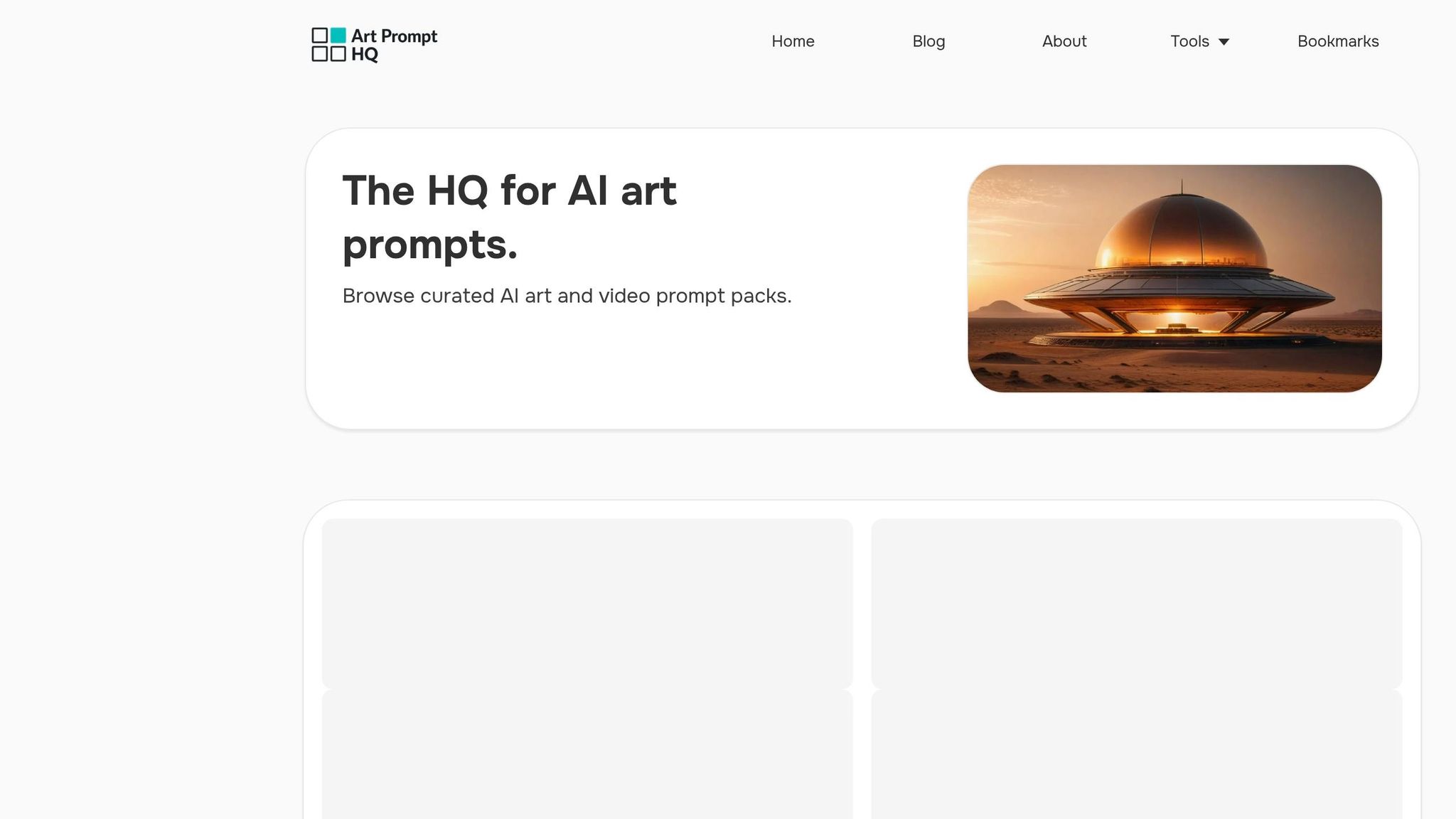
The negative prompt generator simplifies the creation of exclusion lists tailored to remove unwanted traits like distorted faces, extra limbs, or text overlays. It also incorporates Universal Quality Negatives to tackle common issues such as blurriness, noise, and JPEG artifacts. Instead of manually crafting exclusion lists, this tool allows you to generate negatives suited to your specific goals - whether you're working on portraits, product photography, or stylized illustrations. By filtering out flaws early, this tool reduces the need for repeated iterations, helping you achieve cleaner results in fewer steps. It’s particularly useful for minimizing persistent problems like distorted anatomy or unclear images.
Other Prompt Tools to Improve Your Workflow
Once you’ve assembled a strong negative prompt list, you can further refine your prompts with tools like the AI Image Prompt Refiner and the AI Image Prompt Optimizer. These tools help balance positive and negative instructions, avoiding contradictions such as requesting "dark lighting" while excluding "shadows." They also allow for weighted exclusions, such as (blurry:1.5), to address recurring issues more aggressively. Making adjustments incrementally and testing them ensures your positive and negative prompts work together effectively.
Finding Prompt Packs for Your Projects
To complement these tools, explore curated prompt packs available on Art Prompt HQ. These packs often include pre-tested negative prompts tailored to specific styles. For example, the Portraits category features packs designed to correct common anatomical issues like extra fingers or uneven facial features. Meanwhile, the Photography category offers negatives that exclude non-photographic elements, such as cartoon or 3D render styles, ensuring a more consistent output. Using proven prompt packs saves time and provides a solid starting point for your projects. You can also expand your skills by exploring the learning resources to understand how negative prompts fit into broader creative workflows and automation.
Conclusion
Negative prompts are a practical way to address common AI art challenges like extra limbs, distorted faces, blur, noise, and unwanted text. By instructing the model on what to avoid, they help produce cleaner and more reliable results. This method simplifies the creative process, making it easier to develop a focused library of negative prompts.
Begin with a small set of well-chosen terms, adding exclusions only when necessary. Overloading your prompt can dilute its effectiveness, so aim for clarity and precision. Organizing reusable negative prompt lists by goal, model, and style can save time and ensure a smoother workflow. Pair these lists with trending AI art prompt packs, such as those in Art Prompt HQ's Portraits and Photography categories, which often include pre-tested negative prompts tailored to specific styles. Tools like the negative prompt generator can help you quickly create targeted exclusion lists. You can also refine your prompts and optimize them to balance positive and negative inputs effectively.
As you refine your technique, these strategies will naturally integrate with your existing prompt packs, leading to consistently better outputs. Negative prompts are not just about avoiding mistakes - they help sharpen your creative focus by removing distractions and imperfections that detract from your vision. Test adjustments incrementally, fine-tune weights for persistent issues, and update your lists as models evolve. For instance, what works well with Stable Diffusion 1.5 today might need to be rethought for SDXL or newer versions in the future. By staying adaptable and continuously refining your process, you can achieve greater precision in your results. Explore more about prompt engineering and workflows through resources like Art Prompt HQ’s learning section to keep improving over time.
FAQs
When should I use a negative prompt vs rewriting my main prompt?
Negative prompts are helpful when your main prompt works well but the output includes unwanted elements like extra limbs, blurry sections, or distorted faces. Think of them as filters that help eliminate these issues. If you're trying to clarify what you want to create, it's better to rewrite your main prompt. However, negative prompts are perfect for addressing recurring flaws while keeping your original idea intact.
How can I tell if my negative prompt list is too long?
Keeping your negative prompt list small and focused is key to maintaining control and achieving better results. Overloading the list with too many terms can lead to diminishing returns or even conflicting instructions that confuse the model. Start with a concise set of negatives and expand only when absolutely necessary. Each new addition should be tested carefully to ensure it enhances outcomes without introducing new problems. A streamlined list not only improves efficiency but also helps the model perform more predictably.
What’s the best way to adapt one negative prompt list across SD, SDXL, Midjourney, and DALL·E?
Start with a well-thought-out negative prompt list aimed at addressing frequent problems like extra limbs, blurriness, or visual artifacts. Test this initial list across different models to see how they respond. From there, fine-tune by adding or removing terms depending on how effectively each model handles these issues. Tackle specific problems one at a time, layering prompts carefully without overwhelming the list. This approach keeps things adaptable and allows for better control. Consistent testing and adjustments will help you achieve the best results for each platform you work with.