If your AI art feels inconsistent, tweaking parameters might be the solution. Beyond crafting prompts, parameters control how the model interprets and renders your ideas. This guide walks you through key settings like resolution, stylization, and variation, helping you create more reliable and polished results with tools like Midjourney, Stable Diffusion, and DALL·E. Whether you're aiming for precise control or experimenting with bold styles, this checklist ensures you approach every project systematically for consistent outcomes.
Why Parameters Matter Just as Much as Prompts
It’s easy to feel frustrated when relying only on prompts. While a prompt defines the subject and mood, parameters shape the framing, level of detail, and how much creative freedom the model uses. Even the most detailed prompts can lead to inconsistent results if parameters aren’t fine-tuned - this can result in awkward compositions, uneven cropping, or outputs that vary wildly with each attempt.
Here’s a helpful guideline: if the AI generates the wrong subject, action, or setting, rewrite the prompt. But if the subject is correct and the overall feel is off, it’s time to tweak the parameters. For instance, an image that feels too plain might benefit from a higher stylization value, while one that looks overly processed could have an excessive CFG scale. Reducing the CFG scale to somewhere in the 7–9 range often brings back more natural-looking results [2]. In these cases, adjusting parameters proves far more effective than reworking the prompt.
Parameters also provide something prompts can’t: precise, repeatable control. By using a fixed seed (e.g., 2847391), an exact stylization value like 150, and a specific aspect ratio such as 16:9, you can ensure the same starting point every time. This level of control is invaluable for creating consistently styled series instead of relying on one-off successes.
"Consistency across a set is a prompt-architecture problem, not a feature. Seeds, character references, and locked vocabulary do most of the work." - SurePrompts Team [3]
Think of prompts and parameters as two distinct tools: the prompt sets the creative direction, while parameters lock in consistency. Up next, we’ll dive into the main types of AI image generator parameters and how they influence your results.
sbb-itb-997826f
The Main Categories of AI Image Generator Parameters
Each parameter category focuses on a specific element of image creation. Understanding which one to tweak can save time and eliminate the need to adjust everything at once.
Resolution and Quality Parameters
Quality settings influence both the level of detail in the final image and how long the rendering process takes. For instance, in Midjourney, the --quality flag offers options like 0.5 (faster with less detail), 1 (default setting), and 2 (higher detail but increased GPU usage). A practical approach is to test concepts using 0.5 or 1 and reserve 2 for final renders that justify the extra time and resources. Keep in mind, better quality settings won't fix a poorly written prompt - they'll just make its flaws more noticeable.
Aspect Ratio and Composition Parameters
Aspect ratio affects how an image is perceived. A 16:9 ratio is ideal for banners or cinematic visuals, while 2:3 fits well with portraits or posters, and 1:1 aligns with most social media formats. Adjusting the aspect ratio isn’t just cropping - it changes how elements are arranged within the frame. Setting this parameter early helps guide the rest of your decisions.
Style and Creativity Parameters
Style parameters determine how closely the AI sticks to your instructions versus adding its own flair. In Midjourney, the --stylize parameter ranges from 0 to 1,000: lower values yield literal interpretations, while higher values lean toward abstraction. A range of 100–250 often strikes a good balance. In Stable Diffusion and Flux, the CFG (Classifier-Free Guidance) scale serves a similar purpose, with 7–9 being a common starting point [2]. Be cautious - pushing the CFG scale beyond 15 can lead to oversaturation and unwanted artifacts.
Variation and Chaos Parameters
When you need a variety of visual ideas quickly, variation settings are key. In Midjourney, the --chaos parameter (ranging from 0–100) controls how different the images in a grid are. A value between 30–50 introduces diversity without veering too far from your initial concept [1]. For more experimental projects, the --weird parameter (ranging from 0–3,000) produces unconventional and unexpected results, though it can be unpredictable [1].
Guidance and Strength Parameters
Guidance strength determines how strictly the model follows your prompt or reference image. In Midjourney, the --iw (Image Weight) parameter, which ranges from 0 to 3, adjusts the influence of a reference image [1]. Lower values give the AI more creative freedom, while higher values ensure greater adherence - useful for tasks like product photography or maintaining character consistency.
Negative Prompt Parameters
Negative prompts help filter out unwanted elements by specifying what should be excluded. In Midjourney, this is done using the --no flag (e.g., --no text, watermark, extra fingers), while Stable Diffusion offers a dedicated field for this purpose. Use negative prompts sparingly to address specific issues, as overloading them can dilute the main guidance [3]. For refinement, consider tools like a negative prompt generator.
Seed and Consistency Parameters
A seed fixes the initial noise pattern used by the model, making it an essential tool for reproducing results. In Midjourney, seeds can range from 0 to 4,294,967,295 [1]. Once you find a composition you like, lock the seed to make incremental changes - such as adjusting a single word in your prompt - without altering the overall structure. During early exploration, random seeds can help generate fresh ideas.
These categories lay the groundwork for a detailed AI art parameters checklist. For those looking to dive deeper into specific platform techniques, a Midjourney tips bundle can provide additional expert guidance on mastering these settings.
A Step-by-Step AI Art Parameters Checklist
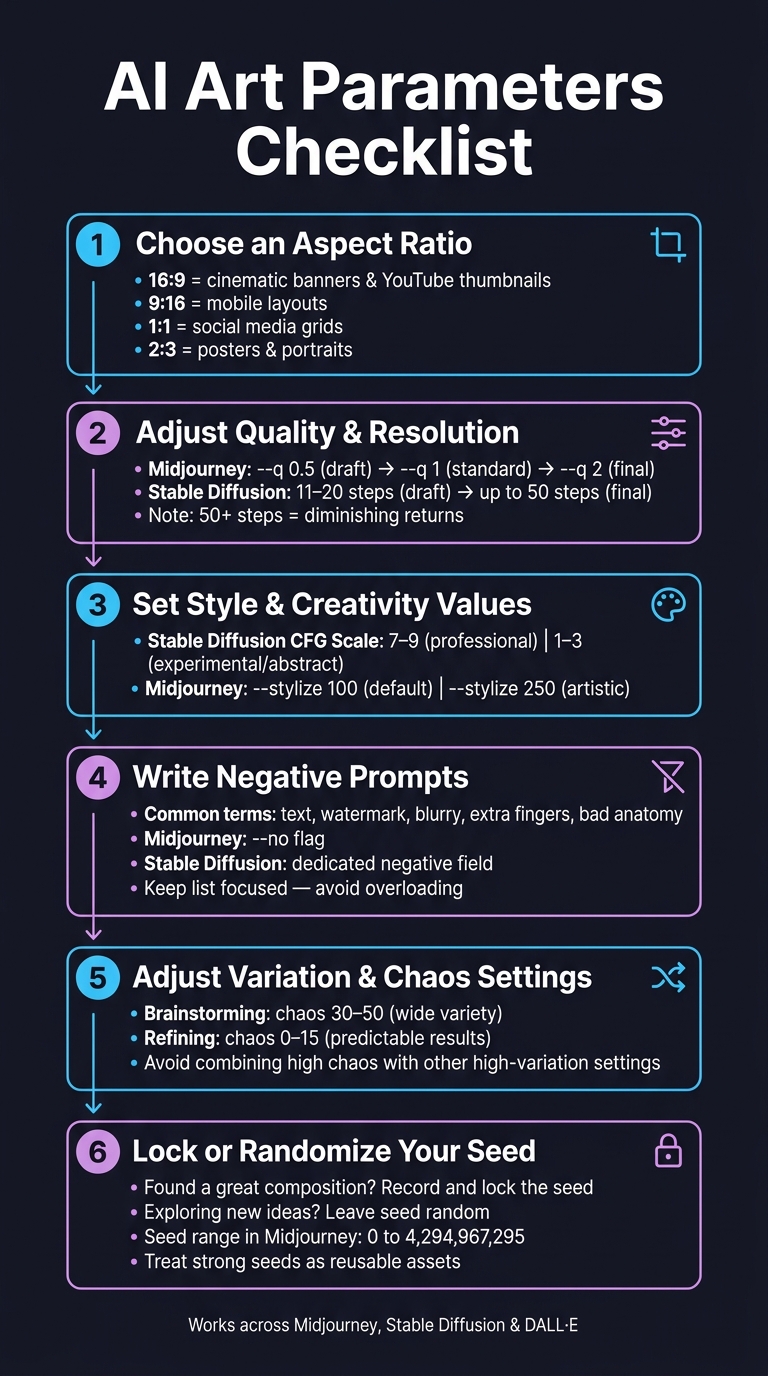
AI Art Parameters Checklist: 6-Step Workflow for Consistent Results
This checklist helps you fine-tune your AI art settings in a structured way, ensuring consistent results every time you start a new project. Whether you're using Midjourney, Stable Diffusion, or DALL·E, follow these steps to keep your workflow organized and effective.
-
Choose an Aspect Ratio
Start by locking in your desired aspect ratio. For example, a16:9frame works well for cinematic banners or YouTube thumbnails, while9:16is ideal for mobile layouts. A1:1ratio fits most social media grids, and2:3is perfect for posters or portrait-oriented prints. Setting this first ensures all your other adjustments are made within the right spatial framework. Once your frame is set, move on to quality settings. -
Adjust Quality and Resolution
Begin with lower quality settings to save time and resources while exploring ideas. For instance, in Midjourney, you can use--q 0.5, or try 11–20 steps in Stable Diffusion. Once you're satisfied with a direction, increase to--q 1for standard results and use--q 2for final renders. Keep in mind that going beyond 50 steps in Stable Diffusion often yields diminishing returns [2]. With quality settled, focus on style adjustments. -
Set Style and Creativity Values
Define how literal or imaginative the model should be. In Stable Diffusion, a CFG scale of 7–9 works well for professional outputs, while lower values (1–3) are better for experimental or abstract projects [2]. For Midjourney, the default--stylize 100is a good starting point, but you can increase it to250for a more artistic touch without losing coherence. Once you've nailed your style, address any unwanted elements. -
Write Your Negative Prompts
After reviewing an output, add negative prompts to eliminate specific issues. Common terms to start with includetext, watermark, blurry, extra fingers, bad anatomy. Use the--noflag in Midjourney or the negative prompt field in Stable Diffusion. Keep the list focused - tools like a negative prompt generator can help you create a clean, streamlined list. With problem elements filtered out, it's time to refine variation settings. -
Adjust Variation and Chaos Settings
Use higher chaos values (30–50) when brainstorming ideas to generate a wide range of outputs. Once you've identified a direction you like, lower the chaos value (around 0–15) for more predictable results. Avoid combining high chaos with other high-variation settings, as this can make it harder to control the outcome. -
Lock or Randomize Your Seed
When you find a composition you love, record the seed value. Locking the seed allows you to tweak individual elements or settings without altering the base image [3]. If you're exploring new ideas, leave the seed random. Treat any seed that produces strong results as a reusable asset for future projects.
How to Pair Parameter Tweaks with Prompt Packs
Aligning parameter tweaks with your chosen prompt pack can greatly improve the consistency of your AI-generated content. Think of it like this: the prompt pack acts as the script, defining what the model should create - the subject, mood, environment, and style - while parameters determine how it’s rendered. These settings shape the framing, detail, and balance between strict adherence to instructions and creative flexibility. When used together, they harmonize content and execution.
Your prompt forms the base, and parameters fine-tune the final result.
Matching Parameters to Prompt Pack Categories
The type of prompt pack you use often dictates the best parameter settings. For example, photorealistic packs, such as those in the photography prompt category, require precise controls, whereas stylized portrait packs benefit from different adjustments. In Midjourney, using --style raw with a --stylize value between 50 and 250 ensures the model doesn’t add unnecessary artistic flair, allowing terms like "85mm f/1.4" or "Rembrandt lighting" to guide the output. Similarly, in Stable Diffusion, a CFG scale of 8–10 keeps the model focused on the pack's technical details without wandering off course.
For 3D and Unreal-style packs, a moderate stylization range (250–500) balances quality and framing while maintaining the intended style.
Meanwhile, abstract and experimental packs thrive on creative freedom. Higher chaos values (50–100) and stylization settings (750–1000) allow the model to explore bold, unconventional interpretations. If you’re using Midjourney’s --weird parameter, setting it between 150 and 1,000 can add a unique, avant-garde twist while staying true to the pack’s artistic vision.
Using the Same Checklist Across Models
Although platforms like Midjourney, Stable Diffusion, and DALL·E 3 have different parameter systems, the core principles remain the same. Focus on the intent behind each setting rather than trying to replicate exact syntax. Whether you’re working with cinematic photography or experimental art, the goals of your prompt pack stay consistent across platforms.
Here’s a quick comparison of how parameters translate across these tools:
| Parameter Category | Midjourney | Stable Diffusion | DALL·E 3 |
|---|---|---|---|
| Aspect Ratio | --ar 16:9 |
Set in UI or metadata | "in 16:9 format" |
| Stylization | --stylize 250 |
CFG Scale slider | Natural language descriptors |
| Variation | --chaos 30 |
Variation Strength slider | 4 version variations |
| Negative Prompt | --no [elements] |
Dedicated negative field | "Without [elements]" in prose |
| Quality | --quality 1 |
Sampling steps in UI | "8K, highly detailed" |
When switching between platforms, use this checklist to adjust your workflow. The idea is to stay true to the pack’s creative direction while tailoring the parameters to each model’s unique features. This approach ensures a smooth and consistent process, no matter which platform you’re using.
Saving, Repeating, and Building on Your Best Settings
Once you've fine-tuned your parameters using a step-by-step approach, it's crucial to save those settings. Forgetting the details of a successful configuration is a common pitfall, but recording them ensures you can replicate your success.
Recording Parameter Sets
Keeping track of your winning combinations transforms a lucky result into a repeatable process. After each successful run, document the full prompt string, all parameter values, and the model version you used (e.g., --v 7 in Midjourney). This step is especially important because parameters like --stylize 400 can behave differently with updated model versions.
Don’t overlook details like the seed and style reference codes. For instance, if you used a --sref code in Midjourney to define a specific artistic style, saving it allows you to recreate the same aesthetic and mood effortlessly.
"Parameters and proper prompting will help you refine the subtleties of your image and get things just right." - Nick Smith, Founder and CEO, Run The Prompts [1]
These records form the backbone of reusable profiles for future projects.
Building Reusable Parameter Profiles
Reusable profiles are preset configurations tailored to your needs. For example, a branding profile might lock in a specific aspect ratio while including a negative prompt like --no text, watermark, blur. Meanwhile, a character design profile could pair a fixed seed with a moderate --stylize value and a style reference code that defines the character's look.
When creating profiles, limit style descriptions to 5–7 key terms, such as "medium, linework, palette, lighting." Overloading the description with too many tokens can lead to what Sachin Kamath, CEO of Neolemon, refers to as "style soup", where the model merges descriptors unpredictably [5]. Once you find a phrase that works—like using Midjourney prompts across art styles—stick with it. Swapping it for a similar term, such as "rough watercolor paper", might introduce unintended variations.
Reviewing and Refining Your Logs
Your work doesn’t end with recording settings. Regularly reviewing and refining your logs can improve your results over time. Look for patterns: Which --chaos values consistently delivered the compositions you liked? What negative prompts helped eliminate unwanted elements? Recognizing these trends reduces unnecessary trial and error. For those seeking more experimental results, using surreal AI art ideas can help you push the boundaries of your established logs.
When testing changes - like increasing --stylize from 250 to 400 - use a fixed seed so the only variable is the one you're adjusting. Midjourney’s --repeat parameter (up to 40 runs) is another handy tool, letting you quickly test whether your setup delivers consistent results [1][4].
Where to Learn More About Prompts, Packs, and Parameters
This checklist offers a strong starting point, but the real magic happens when you combine well-tuned parameters with thoughtfully crafted prompts. As John Buckley of PC Guide explains: "Using parameters can transform your images from average to exceptional. The right parameters at the end of your prompt can change its style, determine the variation in each panel, and affect the quality, aspect ratio, and more." [6] If you want to elevate your creative process even further, exploring specialized prompt packs is a great next step.
Once you've established a solid parameter workflow, dive into resources that focus on prompt and workflow design. The learn AI art prompts section on Art Prompt HQ delves deeply into these topics. Whether you're just starting to build your parameter profile or fine-tuning an existing one, this resource can help you achieve more consistent results. Parameters shape the output, but the prompt pack determines the content. Mastering both is key to moving from inconsistent outputs to reliable, professional-quality work.
Selecting the right prompt pack depends on the visual style you're aiming for. For example:
- If you're working on photography-style projects, photorealistic prompt packs are a great match.
- For stylized or rendered visuals, 3D and Unreal-focused packs can help you achieve the desired look.
- If you're experimenting with more abstract or unconventional ideas, abstract AI art prompt packs offer a solid creative base.
To maintain quality across your projects, consider using a negative prompt generator. This tool can help you create reusable profiles to filter out unwanted elements like artifacts or watermarks, ensuring your outputs consistently meet a high standard.
FAQs
What should I change first when an image feels 'off' but the subject is correct?
If an image seems "off" even though the subject is accurate, begin by tweaking the quality or resolution settings - these impact the sharpness and level of detail. If that doesn’t resolve the issue, adjust the style or creativity parameters to fine-tune the artistic feel or minimize unpredictability. You can also utilize negative prompts to remove elements you don’t want. Prioritize these changes before diving into finer controls like aspect ratio or seed adjustments.
How do I apply the same tuning checklist to Midjourney, Stable Diffusion, and DALL·E 3?
When working with AI art models, it's helpful to focus on core parameter categories that apply universally. These include aspect ratio, quality/resolution, style/creativity, negative prompts, variation/chaos, and seed/consistency. Each of these categories influences the output in specific ways, and their adjustments depend on the model's syntax. For example, you might use –ar to set the aspect ratio or –chaos to control variation.
These six areas - composition, quality, style, exclusion, variation, and reproducibility - form the foundation of creating consistent and predictable results across platforms. By understanding and fine-tuning these parameters, you can achieve greater control over your creative process, regardless of the specific AI model you're using.
What’s the best way to log and reuse a “winning” parameter set for consistent series?
To keep track of and reuse a successful parameter set, make sure to note down the exact values - such as aspect ratio, seed, quality, and chaos - that produced your desired outcome. Use tools like a log file, spreadsheet, or even simple notes to document these settings alongside the prompt. Additionally, consider creating templates or presets to quickly recreate and fine-tune these results, helping you maintain consistency across your projects.